
dde-network-utils
Description
dde network settings.After login, you need to connect to a network first and then surf the Internet!
Software Architecture
ALL
Installation
dnf install dde-network-utils
Instructions
Check your network status by clicking the network icon in Dock.
-
Wired Network
Wired network is secure and stable, which makes it the most common way to connect to the Internet. After your router is set, connect both ends of the network cable to the computer and router to connect to a wired network.
-
Plug the cable into the network slot of a computer.
-
Plug another end of the cable into the router or network port.
-
On the homepage of Control Center, click
 .
. -
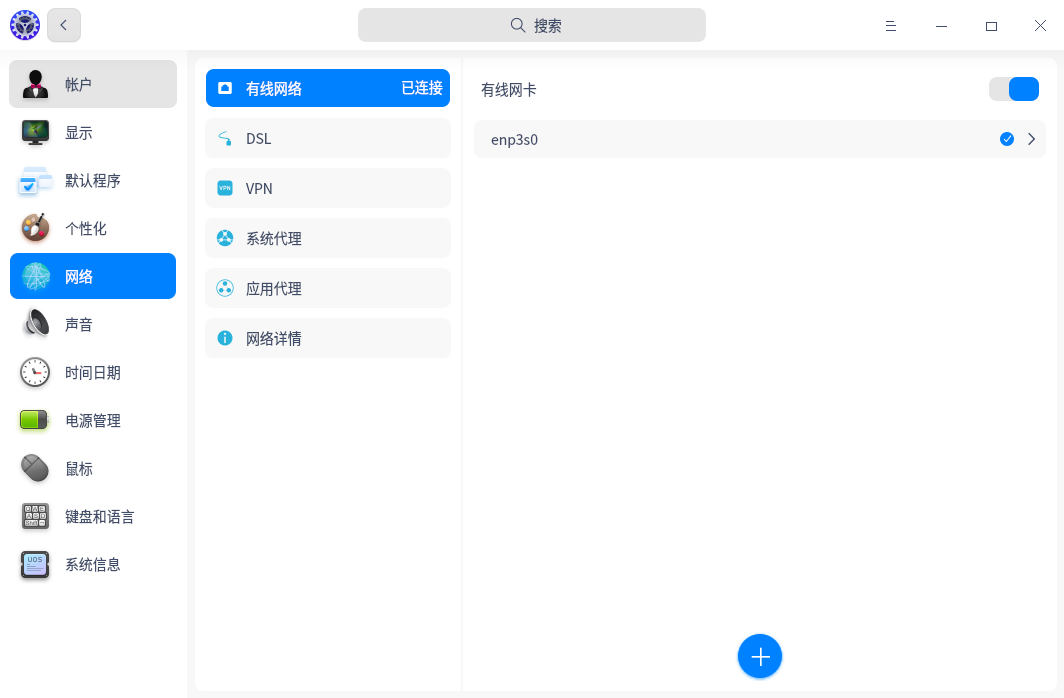
Click Wired Network to enter the setting page of wired network.
-
Switch on Wired Network Adapter to enable wired network.
-
If it is successfully connected to the network, there will be a prompt Wired Connection connected.
You can also edit and add a new wired network in the setting page.
-
-
DSL/PPPoE Connections
DSL is a dial-up connection using a standard phone line and analog modem to access the Internet. Configure the modem, plug the telephone line into the network interface of the computer, create a broadband dial-up connection, and enter the user name and password provided by the operator to dial up the Internet.
Create a PPPoE Connection:
-
On the homepage of Control Center, click
. -
Click DSL.
-
Click
 .
. -
Enter the name, your account and password the operator provides.
-
Click Save. The connection will automatically start.
-
-
VPN
VPN is a virtual private network. Its main function is to establish a private network on the public network for encrypted communication. Whether you are on a business trip or working at home, you can use VPN to access intranet resources as long as you can access the Internet. You can also use VPN to speed up access to websites in other countries.
-
On the homepage of Control Center, click
. -
Click VPN, and click
or  .
. -
Select the VPN protocol type, and enter the name, gateway, account, password and other information. (Importing VPN will automatically fill in information)
-
Click Save, the system will try to connect VPN network automatically.
-
You can export the VPN settings to backup or share with other users.
 Notes: If you don't want to use the VPN as the default routing, but only want it to take effect on specific network resources, switch on Only applied in corresponding resources.
 -
-
System Proxy
-
On the homepage of Control Center, click
. -
Click System Proxy.
-
Click None and Save to disable the proxy.
-
Click Manual and input the address and port of proxy servers.
-
Click Auto and input a URL to configure the proxy info.
-
-
Application Proxy
-
On the homepage of Control Center, click
. -
Click Application Proxy.
-
Select a proxy type, and fill in the IP address, port, etc.
-
Click Save to save the proxy settings.
Notes: After being configured, run Launcher, right-click any application's icon and check Use a proxy, and then the application will be opened by proxy. -
-
Network Info
You can view MAC, IP address, gateway and other network info in network details.
-
On the homepage of Control Center, click
. -
Click Network Details.
-
View the network info of the current network.
-
Contribution
- Fork the repository
- Create Feat_xxx branch
- Commit your code
- Create Pull Request
Gitee Feature
- You can use Readme_XXX.md to support different languages, such as Readme_en.md, Readme_zh.md
- Gitee blog blog.gitee.com
- Explore open source project https://gitee.com/explore
- The most valuable open source project GVP
- The manual of Gitee https://gitee.com/help
- The most popular members https://gitee.com/gitee-stars/